tisdag 24 februari 2015

Recept på klassisk sockerkaka som är god till kaffet.

Recept på klassisk sockerkaka som är god till kaffet. Tillsammans med färska bär och vispad grädde blir kakan en fin dessert.

Receptet gäller för 10 bitar

Ingredienser

  • 75 g Arla® Svenskt Smör
  • 1 dl Arla® mjölk
  • 2 st ägg
  • 2 dl strösocker
  • 2 tsk vaniljsocker
  • 3 dl vetemjöl
  • 1 12 tsk bakpulver

Gör så här:

Sätt ugnen på 175°. Smörj och bröa en form som rymmer ca 1,5 liter. Smält smöret, häll i mjölken och låt det svalna. Vispa ägg och socker ljust och pösigt, gärna med elvisp. Tillsätt vaniljsocker eller rivet citronskal, mjölet blandat med bakpulvret och mjölkblandningen. Rör snabbt ihop till en jämn smet, häll den i formen. Grädda i nedre delen av ugnen i ca 35 min.

Tips:

Vaniljsockret kan ersättas med rivet skal av 1/2 citron.

Linux - Bash alias - mkdir (name = date)

add to your alias file:

alias datefolder="sudo mkdir $(date '+%d-%b-%Y')"

tool to create a Firefox extension (.xpi) from a greasemonkey script.

Type in the appropriate details below, you may leave the default random GUID if you do not have one, or replace it with your own value, which you should definitely do for upgrades to an existing extension.

Link

Linux - Debian Linux apt-get package management cheat sheet

by on May 9, 2005 · 20 comments· LAST UPDATED September 9, 2012

in , ,

Both Debian and Ubuntu Linux provides a number of package management tools. This article summaries package management command along with it usage and examples for you.

  • apt-get : APT is acronym for Advanced Package Tool. It supports installing packages over internet using ftp or http protocols. You can also upgrade all packages in a single operations, which makes it even more attractive.
  • dpkg : Debian packaging tool which can be use to install, query, uninstall packages.
  • Gui tools: You can also try GUI based or high level interface to the Debian GNU/Linux package system. Following list summaries them:

    • aptitude: It is a text-based interface to the Debian GNU/Linux package system.
    • synaptic: GUI front end for APT

Red hat Linux package names generally end in .rpm, similarly Debian package names end in .deb, for example:

apache_1.3.31-6_i386.deb

Where,

  1. apache : Package name
  2. 1.3.31-6 : Version number
  3. i386 : Hardware Platform on which this package will run (i386 == intel x86 based system)
  4. .deb : Extension that suggest it is a Debian package

Remember whenever I refer .deb file it signifies complete file name, and whenever I refer package name it must be first part of .deb file. For example, when I refer to a package sudo it means sudo only and not the .deb file i.e. sudo_1.6.7p5-2_i386.deb. You can find out debian package name with the following command:

apt-cache search {package-name}
apt-cache search apache

Finally, most of the actions listed in this post are written with the assumption that they will be executed by the root user running the bash or any other modern shell.

apt-get add a new package

Add a new package called samba. The syntax is:

 apt-get install {package-name} 

To install a package called samba, run:

# apt-get install samba

apt-get remove the package called samba but keep the configuration files

The syntax is:

 apt-get remove {package-name} 

Example:

# apt-get remove samba

apt-get remove (erase) package and configuration file

The syntax is:

 apt-get --purge remove {package-name} 

Example:

# apt-get --purge remove samba

apt-get update (upgrade) package

The syntax is:

 apt-get upgrade 

To upgrade individual package called sudo, enter:
# apt-get install sudo

apt-get display available software updates

Following command will display the list of all available upgrades (updates) using -u option, if you decided to upgrade all of the shown packages just hit 'y'

# apt-get upgrade samba

However if you just wish to upgrade individual package then use apt-get command and it will take care of rest of your worries:

 apt-get install {package-name} 

dpkg command to get package information such as description of package, version etc.

The syntax is:

 dpkg --info {.deb-package-name} 

Example:

# dpkg --info sudo_1.6.7p5-2_i386.deb | less

List all installed packages

The syntax is:

dpkg -l

Example:

# dpkg -l

To list individual package try such as apache

# dpkg -l apache

You can also use this command to see (verify) if package sudo is install or not (note that if package is installed then it displays package name along with small description):

# dpkg -l | grep -i 'sudo'

To list packages related to the apache:

# dpkg -l '*apache*'

List files provided (or owned) by the installed package (for example what files are provided by the installed samba package). The syntax is:

 dpkg -L {package-name} 

Example:

# dpkg -L samba

(H) List files provided (or owned) by the package (for example what files are provided by the uninstalled sudo package). The syntax is:

 dpkg --contents {.deb-package-name} 

Example:

# dpkg --contents sudo_1.6.7p5-2_i386.deb

Find, what package owns the file /bin/netstat?

The syntax is:

 dpkg -S {/path/to/file} 

Example:

# dpkg -S /bin/netstat

Search for package or package description

Some times you don't know package name but aware of some keywords to search the package. Once you got package name you can install it using apt-get -i {package-name} command:

 apt-cache search "Text-to-search"apt-cache search "httpd"apt-cache search "web server"apt-cache search "web server"| grep something 

Find out all the Debian package which can be used for Intrusion Detection

Type the following command:

# apt-cache search "Intrusion Detection"

Find out all sniffer packages, run:

# apt-cache search sniffer

Find out if Debian package is installed or not (status)

The syntax is:

 dpkg -s {package-name} |  grep Status 

Example:

# dpkg -s samba| grep Status

List ach dependency a package has...

Display a listing of each dependency a package has and all the possible other packages that can fulfill that dependency. You hardly use this command as apt-get does decent job fulfill all package dependencies. The syntax is:

 apt-cache depends package 

Display dependencies for lsof and mysql-server packages:

# apt-cache depends lsof
# apt-cache depends mysql-server

Further reading

Linux - Bash add ppa if not already exist

måndag 23 februari 2015

Linux - Should I use "apt-get remove" or "apt-get purge"?

If you have customized the package/software at all, either by editing the config files directly, or via a GUI, you may want to keep your customizations. Usually in Unix/Linux systems, configurations are saved in text files, even if the configuration/customization is done via the GUI.

Each Debian binary deb package has a list of files which it identifies as config files. dpkg, and thus apt honor this identification when removing packages, and also on upgrades. By default apt/dpkg will not remove config files on package removal. You have to request a purge. On upgrade it will ask you to choose between the current version and the new version (if they differ) before overwriting config files. Even in that case, it saves a copy of the original file. Here Debian is trying to help you, based on the assumption that your config files may contain valuable information.

So, if you have not configured the package, or you don't want to keep your configurations, you can use apt-get purge.

If you do keep the config files, then if/when you reinstall the package, Debian will attempt to reuse the saved configuration information. If the version of the package you are trying to (re)install has config files that conflict with the configuration files that are already installed, it will again ask you before overwriting, as it does on upgrade.

Minor comment: if you have removed the package and later want to remove the config files, you will need to call dpkg directly, because apt will not remove the config files if the package is no longer installed.

dpkg -P packagename

should remove the config files for you in that case.

Are these equivalent: apt-get remove --purge APP VS apt-get purge APP? –  mini Jul 26 '14 at 8:18
    
@mini: Yes. Quote from the apt-get man page, "remove --purge is equivalent to the purge command." –  Faheem Mitha Jul 26 '14 at 8:39

From the man page of apt-get:

   remove
        remove is identical to install except that packages are removed 
        instead of installed. Note that removing a package leaves its 
        configuration files on the system. If a plus sign is appended to the 
        package name (with no intervening space), the identified package 
        will be installed instead of removed.

   purge
        purge is identical to remove except that packages are removed and 
        purged (any configuration files are deleted too).

I would tend to use purge if you tend to not want to keep any configuration files around.

purge remove configuration files of your packages, but remove keep configuration files of your package.

But advantages or disadvantages: It's related to your system, your packages, your machine, install it or not, and so on.


Linux - Installera Linux-program med Aptitude

Av i Linux - Senaste uppdatering: November 28, 2012 

För er som gillar lite mer kraft bakom dina verktyg kommer du säkert att uppskatta Aptitude front-end för paketet apt hanteringssystem. Aptitude är baserad på ncurses datorterminal bibliotek så att du vet att det är en pseudo-hybrid mellan konsol och gui. Aptitude har en kraftfull söksystem samt en enastående ncurses baserat menysystem som gör att du kan flytta runt markeringar med tabbtangenten och piltangenterna.

Men tror inte, när du skjuter upp Aptitude, du kommer att hälsas med en sexig grafiskt gränssnitt. Nej, när du startar upp det här programmet du kommer att bli teleporterad tillbaka till mitten av 90-talet när front-end-applikationer var bara anländer på scenen. Men Aptitude är så mycket mer än så. Aptitude är ett kraftfullt verktyg för att hjälpa dig att använda apt pakethanteringssystem.

För att öppna Aptitude måste du först öppna ett terminalemulator (t.ex. aterm, gnome-terminal eller konsole). Jag varnar dig, om du är som jag och använder aterm i fullt utvecklad öppenhet Aptitude kan titta på lite konstigt. Så istället ska du skjuta upp en annan terminal eller använd aterm utan insyn.

För att starta upp aptitude behöver du root eller sudo åtkomst. Använder sudo du skulle börja Aptitude som så: sudo aptitude.

Aptitude Main Window

Aptitude Huvudfönstret

Det finns två huvuddelar att fokusera på. Först är huvudfönstret. Det är där du kommer att se en lista över de vad som finns tillgängligt. Som ni kan se från bilden ovan finns uppgraderingspaket, nya paket, etc. Vad du inte ser är Aptitude menyn. För att komma åt den här menyn måste du slå Ctrl-T kombination (dvs Ctrl plus "t" -tangenten samtidigt.) När du öppnar upp Aptitude menyn du navigerar här menyn med piltangenterna.

Aptitude Menu

Aptitude Meny

Innan du faktiskt komma in installation av paket med Aptitude, måste du välja paket att installera. Du gör detta utanför menyn i huvudfönstret. Utan menyn öppnar du kan gå upp och ned fönsterposter med piltangenterna. När du landar på en post som du vill utöka du trycker på Enter. Låt oss installera något.

Använda piltangenterna flytta ner till "inte installerat paket" och tryck på Retur. Detta kommer att expandera för att avslöja ett antal undermenyer. Nu rulla ned till nätet undermeny och tryck på Enter. Ännu en undermeny visas innehåller tre poster. Flytta till "main" huvudposten och tryck Enter för att avslöja alla möjliga program som ska installeras.

Network Applications Available

Network Applications Tillgängliga

Låt oss installera Gobby (en textredigerare / källa redaktör som kan göra online-samarbete). Med piltangenterna flytta ner tills du ser Gobby posten. När du hittar Gobby slog på Enter som kommer att avslöja alla de blodiga detaljerna bakom Gobby.
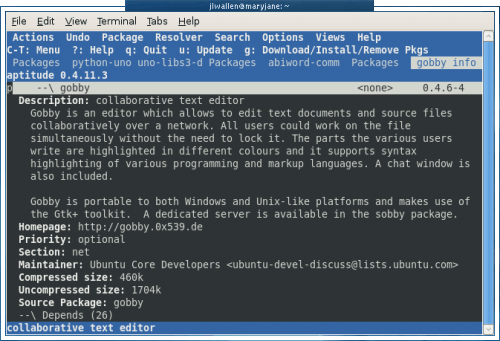
Gobby details

Gobby detaljer

Detta bör berätta allt du behöver för att hjälpa dig att göra beslutet att installera eller inte installera Gobby. Låt oss installera det.

För att välja ett program för installation hit "+" knappen (du behöver använda Skift-tangenten för detta) för att markera paket för installation. Hit nu "g" tangenten och installationen ska börja. Låt dig inte luras när det verkar som om Aptitude har hoppat av ncurses läge och är i full konsolläge, återgår den till det ncurses ära när efter att du slog på Enter när du blir uppmanad (när installationen är klar.)

När installationen är klar kommer du tillbaka till beskrivningen av det paket du just installerat. För att gå tillbaka till huvudfönstret kan du öppna upp menyn (Ctrl-t) och sedan använda högerpilen gå till View posten. Använda på nedknappen välj "Föregående" för att gå till föregående skärm. Du kan också träffa F7 för samma åtgärd.

Och där är du, du bara har installerat ett program med Aptitude. Naturligtvis Aptitude är mycket kraftfullare än detta. I senare artiklar kommer vi att diskutera söka, uppgradering, ta bort, och mycket mer med Aptitude.

Under tiden, ha kul installation med Aptitude!